Creator Trends
Claude Motion for Reels: A Practical Brief-to-Video Workflow
A practical Claude Motion workflow for short explainers: prepare source material, adapt an original prompt, review three scenes, and check the final export.

Claude Motion turns your own text, charts, shapes and images into editable animations. It is in beta on Claude Team and Enterprise and exports MP4. Start with one verified claim, prepare a three-scene brief, then review the exported video before using it in a reel.
Claude Motion turns your own text, charts, shapes and images into an editable animation. It is in beta on Claude Team and Enterprise, and can export an MP4. For a creator, a sensible first use is a short visual explanation built from verified material, followed by a separate edit and review for the channel where it will appear.
What changed, and why creators should care
Anthropic announced Motion on 8 October 2026. Its launch announcement describes animations built as editable code rather than realistic generated footage. That distinction matters when your subject is a product feature, a sequence of steps or a chart whose labels must remain correct.
The opportunity is a more approachable first draft of an explainer. The editorial job remains yours: decide what deserves emphasis, supply the evidence, and reject an attractive scene if it changes the meaning. A smooth transition cannot rescue a comparison with the wrong units.
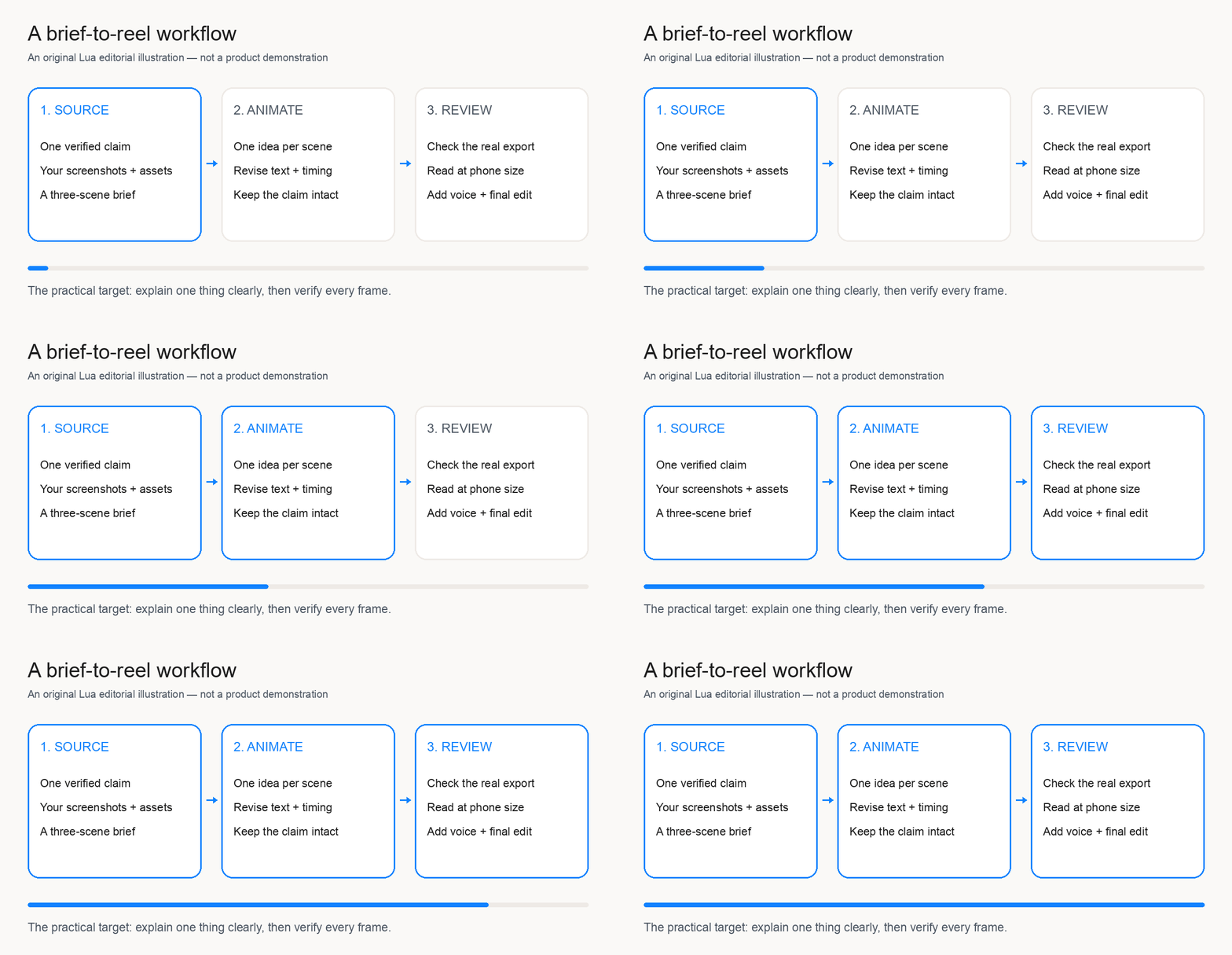
This is a source-based workflow guide, not a hands-on benchmark. The prompt below is an original Lua editorial example; we have not run it in Motion or verified its output quality. The cover and workflow graphic are original illustrations, not screenshots or examples generated by Claude Motion.
Watch the source demonstration first
Watch Anthropic’s official dashboard-to-animation demonstration, linked from its announcement. Treat a launch demonstration as an example selected by its maker. Before copying the workflow, identify the inputs, what actually moves, and what would still need finishing for your own audience.
A separate creator launch-film discussion illustrates interest in AI-assisted motion design. Its author describes several days of scene-by-scene iteration using Python, FFmpeg and a custom review tool. That is a different workflow from Claude Motion. It does not establish that a single prompt produces a finished advertisement, or that the same outcome is typical. We are linking to the creator’s original post rather than copying their film.
Start with an explanation, not an effects list
Choose a question a viewer can answer after one watch. “What changes when I enable this setting?” is a useful brief. “Make a premium launch video with lots of motion” leaves the substance undecided and makes it difficult to evaluate the result.
For a first exercise, use a fictional recording-app feature called Project Presets. Its only claim is that a saved preset keeps the same export choices between projects. This is an invented teaching example, not a Lua feature announcement. Three scenes can explain the problem, show the saved choices, and show the intended next action without inventing time-saving percentages.
Write the sentence you want a viewer to remember before opening an animation tool. Then remove every proposed scene that does not support it. If the brief needs six unrelated benefits, make a series rather than squeezing them into one reel.
Prepare a small, trustworthy source pack
Create a folder with the approved sentence, current product screenshots you have permission to use, brand assets, and a short list of prohibited claims. Mark placeholders clearly. If a screenshot comes from an unreleased build, decide whether it belongs in public content before handing it to a generation tool.
For a chart, include the actual data, date range, units and source link. For a walkthrough, include the real sequence of actions and the result that confirms each step worked. Strip out email addresses, private customer information and unused screenshots so they cannot accidentally appear in the finished piece.
A useful source pack also states what may be simplified. You might allow a menu to become a labeled shape while requiring the setting’s name to remain exact. That gives the animation room to become clearer without giving it permission to rewrite your product.
An original prompt you can adapt
The following is a proposed brief, not a tested recipe or a quotation from a creator. Replace the fictional feature and supply your own approved materials.
Create a short animation explaining our fictional Project Presets feature to a person making their first product reel. Use only the attached approved screenshots and the claim sheet. The single takeaway is: a saved preset keeps the same export choices between projects. Do not invent performance numbers, customer quotes or additional features.
Use three scenes: first show the problem of choosing settings repeatedly; then show a clearly labeled preset with the approved choices; finally show the next action, Save a preset. Make one idea visible at a time. Keep labels legible in a phone-sized preview and avoid placing essential content at the edges. Ask me about any missing fact rather than filling it in. Explain the scene plan before building the animation.
Once the first version exists, revise one issue at a time. Ask for a longer hold on a label that is difficult to read, or ask to remove a transition that competes with the explanation. Keep a copy of the approved claim nearby so each revision can be checked against it.
Build a three-scene review loop
For the opening, check whether the problem is understandable without reading the article that inspired the video. A viewer should not need to decode five floating panels just to discover what the feature does. A plain before-state with one short label is often a better starting point for the experiment.
For the middle, inspect the transformation. Did the graphic preserve the same setting names? Did an arrow imply that something happens automatically when the real product requires confirmation? Freeze the frame and compare it with the source pack. Visual implications deserve the same scrutiny as written claims.
For the final scene, give the viewer a useful next action. Avoid adding a new benefit at the last second. Let the action remain visible long enough to read aloud, then check the sequence at its intended viewing size. These are editorial checks we recommend, not measured guarantees about a particular animation model.
Create and export using the documented controls
Anthropic’s getting-started guide says you can request an animation in chat, choose Motion from Output, or start with a Motion template in Artifacts. It supports revisions through conversation and direct editing; download uses Export, then MP4. Enterprise access may need an owner to enable Motion in organization settings.
Do not assume every plan includes the beta, or that every requested format and duration is supported. Check the current guide and the export controls in your account before planning a client delivery. Specifying a preferred layout in a prompt is a request to test, not proof that a particular export specification is available.
When the animation needs footage or sound
Runway’s launch-partner announcement describes taking a Motion animation into Runway to add generated footage, images, voiceover or music and develop a longer edit. It also describes adapting an explainer for different channels. Those are vendor-described capabilities; this article has not reproduced the handoff.
Make that finishing stage answer a specific need. A product shot can establish context, a voiceover can explain a difficult relationship, and a sound cue can signal a meaningful change. Adding all three everywhere creates more to review. Check the rights and accuracy of every added asset before it becomes part of your export.
Review the real file on a phone
Review the downloaded file rather than relying only on an editor preview. Watch it once with sound and once muted. Read every caption, label, number and call to action. Check that music does not obscure the voice and that the final frame has not cut off the action you want a viewer to take.
For Tamil, English or Tanglish content, separate proper names from ordinary words in your review notes. A visually convincing caption can still miss the intended meaning. If you publish multiple language versions, review each one independently instead of assuming the layout and timing transfer unchanged.
Keep a small acceptance checklist beside the export: correct claim, readable text, understandable sequence, clear audio, approved assets and a useful ending. If any item fails, fix it before testing distribution. Record the actual time spent if you want to compare this method with your existing process later.
Where Lua fits in this workflow
A motion explainer is one asset within a reel. Your recorded introduction, captions, context and final review still shape the finished post. Lua’s captions page explains the product’s approach to captioned creator videos; Why I built Lua gives the founder’s context for the editing problem.
Choose the editing steps that match the tools actually available in your workflow. This article does not claim a Claude Motion–Lua integration. Keep the exported animation as a distinct asset, preserve the original material, and verify any import or finishing path before relying on it for a deadline.
What to try first
Start with one verified claim and three scenes. Make the first version deliberately simple, revise the weakest scene, then inspect the actual export on a phone. The useful result is an explanation a viewer can understand and you can defend. Judge the experiment by clarity, correctness and the real work required to finish it.